
Introduction
It’s 7 AM in Singapore, and a finance controller is racing to close the month-end books in SAP — but before she can, system authentication must verify her identity across three continents. Her team in Frankfurt is battling sluggish response times, and the security team in New York has just flagged an unverified connection attempt to their SAP production system. For global enterprises running SAP across continents, this is not an exception — it’s a regular occurence.
Sensitive financial transactions, HR records, and supply chain data flow constantly across the public internet. Often, little more than a username and password stands between the business and unauthorized access.
The root cause is architectural. When SAP S/4HANA is hosted in a single AWS Region, users far from that Region endure high latency during TLS handshakes. At the same time, static SAP Fiori assets — JavaScript, CSS, and fonts — are fetched repeatedly from the origin server without caching at the network edge. There is no cryptographic guarantee of who is connecting before traffic ever reaches the Amazon VPC (Virtual Private Cloud).
Amazon CloudFront addresses both challenges by moving mTLS (mutual Transport Layer Security) certificate checks to the edge location closest to each user. CloudFront verifies client certificates, caches static SAP content, and forwards certificate metadata as HTTP headers to the SAP backend for X.509-based single sign-on (SSO).
In this post, you learn how to implement this architecture using CloudFront, an Elastic Load Balancing Application Load Balancer (ALB), and SAP Internet Communication Manager (ICM). You walk through trust store setup, CloudFront and ALB configuration, and SAP profile parameters. By the end, you have a working solution that authenticates users at the edge and propagates their identity securely to SAP.
In internal testing, this architecture reduced initial login time by approximately 40–50% for users located in Singapore when the origin was in the N. Virginia (us-east-1) Region. The improvement came from accelerated SAP Fiori page load times through edge caching at CloudFront edge locations. Results vary by network path, user location, and workload; measure in your own environment using the verification steps later in this post.
The customer challenges we continue to hear
Our customers continue to bring the following challenges during our workshops, EBCs (Executive Briefing Center) and other regular cadences. :
- “Our SAP Fiori users in other countries say the launchpad is slow.” When SAP runs in a single region, static Fiori assets (JavaScript, CSS, and fonts) are fetched repeatedly from the origin with no caching at the network edge. Distant users then wait longer on every page.
- “Security flagged that a stolen password is all it takes to reach our SAP login over the internet.” For many customers, little more than a username and password stand between the public internet and financial, HR, and supply chain data. There is no cryptographic proof of who is connecting before traffic reaches the VPC.
- “We are a global enterprise, but our SAP systems lives in one region.” Users far from that region endure high latency during the TLS handshake on every login, which compounds during time-sensitive activities such as month-end close.
- “We already put an ALB with mTLS in front of SAP — why isn’t that enough?” Regional mTLS validation strengthens security within the region, but it does not solve global handshake latency, edge caching of static assets, or edge-level DDoS protection.
Why this matters
Solving these challenges is not just a technical exercise — it changes the business outcome. By verifying client certificates at the edge, you enforce a zero-trust posture that rejects unauthorized connections before they ever reach your VPC. This shrinks the attack surface without deploying and maintaining VPN infrastructure for every remote user. By caching static SAP content and terminating the TLS handshake at the Point of Presence closest to each user, you cut login time by roughly 40–50% in our testing. That is the difference between a finance controller who closes the books on time and one who is stuck waiting on a slow launchpad. And because identity is carried as an X.509 certificate rather than a password, you move the workforce toward passwordless, phishing-resistant single sign-on. The remainder of this post walks through how we resolved these challenges step by step, with links to the detailed AWS documentation for each component.
CloudFront benefits for mTLS with SAP
While an ALB provides strong mTLS capabilities within a Region, adding CloudFront in front of the ALB gives you several advantages for SAP workloads.
CloudFront verifies client certificates at the nearest edge location, so you reject unauthorized connections before traffic enters your VPC. Because the TLS handshake happens at the closest of the more than 600 CloudFront Points of Presence (PoPs), your users experience lower latency regardless of their geographic location.
SAP WebGUI and SAP Fiori applications serve a large volume of static assets, including JavaScript, CSS, and font files. CloudFront caches these assets at the edge, which reduces the number of requests to your origin and improves page load times. You also get built-in protection through AWS Shield and AWS WAF integration, adding layers of defense for your production SAP systems.
When CloudFront verifies a client certificate, it extracts the certificate details. It then adds them as HTTP headers (CloudFront-Viewer-Cert-\*) to the request. Your SAP ICM instance reads the CloudFront-Viewer-Cert-Pem header to perform X.509 certificate-based authentication. This eliminates the need for a direct TLS connection to the client browser.
Architecture overview
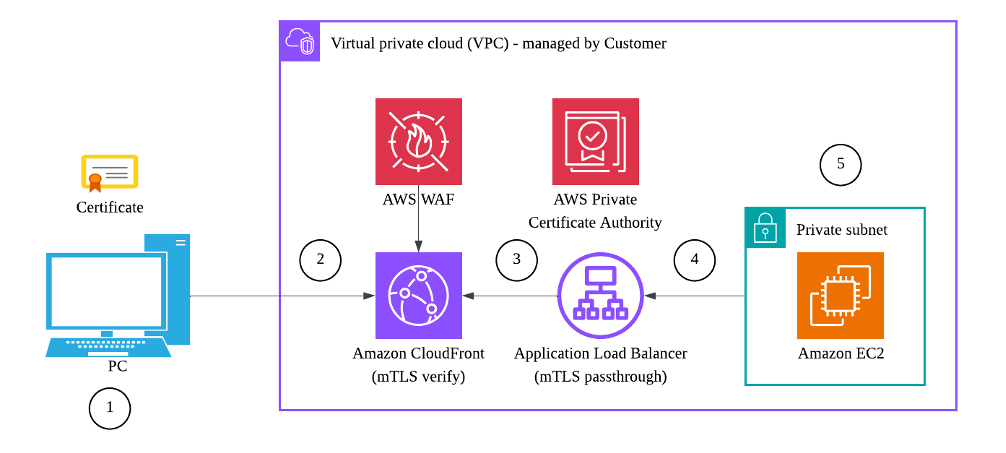
The following diagram shows the end-to-end request flow. Amazon CloudFront serves as the entry point for all client connections. The ALB operates as the origin, and SAP ICM receives the forwarded certificate metadata for authentication. The architecture uses four components: the client browser with an X.509 certificate, CloudFront with mTLS verify mode, an ALB in HTTPS passthrough mode, and SAP ICM on port 44300.

Figure 1. Amazon CloudFront and SAP Deployment in one Customer managed VPC
Request flow
- You install an X.509 client certificate in your browser. AWS Private Certificate Authority (AWS Private CA) creates this certificate for your browser. Alternatively, you can use other trusted certificate authorities.
- Your browser connects to the CloudFront distribution (for example, democf.awsforsap.com). CloudFront requests your client certificate and checks it against the CA certificate stored in an Amazon S3 trust store.
- After successful validation, CloudFront extracts certificate metadata and adds CloudFront-Viewer-Cert-\* headers to the request, including the full PEM-encoded certificate in CloudFront-Viewer-Cert-Pem.
- CloudFront forwards the request to the ALB origin over HTTPS. The ALB operates in mTLS passthrough mode and forwards traffic to the SAP target group.
- SAP ICM receives the request, reads the CloudFront-Viewer-Cert-Pem header (configured through icm/HTTPS/client_certificate_header_name), extracts the client certificate, and maps the certificate common name (CN) to a SAP user through the CERTRULE transaction.
You can also deploy this solution against a RISE with SAP on AWS VPC. The following diagram shows the same pattern where CloudFront and the ALB run in a customer-managed VPC that integrates with the RISE with SAP VPC.

Figure 2. Amazon CloudFront and SAP Deployment in separate Customer managed VPC which is integrated to RISE with SAP VPC
CloudFront mTLS viewer authentication
CloudFront supports mutual TLS authentication in verify mode for viewer connections. In this mode, CloudFront requires all clients to present a valid X.509 certificate during the TLS handshake. CloudFront checks the certificate against a CA certificate bundle stored in an Amazon S3 trust store.
Unlike ALB mTLS, where certificate validation happens within the AWS Region, CloudFront mTLS validation occurs at the edge location closest to you. CloudFront rejects unauthorized connections at the edge before they consume origin resources. CloudFront also minimizes TLS handshake latency because the handshake occurs at the nearest PoP (Point of Presence).
CloudFront viewer certificate headers
When you activate mTLS verify mode, CloudFront automatically generates the following headers and forwards them to the origin through the origin request policy:
| Header | Description |
| CloudFront-Viewer-Cert-Pem | URL-encoded PEM format of the leaf client certificate |
| CloudFront-Viewer-Cert-Subject | RFC2253 string of the subject DN, e.g. CN=ferrymul,O=awsforsap,C=SG |
| CloudFront-Viewer-Cert-Issuer | RFC2253 string of the issuer DN |
| CloudFront-Viewer-Cert-Serial-Number | Hexadecimal serial number of the certificate |
| CloudFront-Viewer-Cert-Sha256 | SHA256 hash of the client certificate |
| CloudFront-Viewer-Cert-Validity | NotBefore and NotAfter dates in ISO8601 format |
| CloudFront-Viewer-Cert-Present | 1 if certificate is present, 0 if not |
The CloudFront-Viewer-Cert-Pem header is the key header for SAP integration. It contains the full client certificate that SAP ICM uses for X.509 authentication.
Implementation steps
The implementation consists of four phases. First, you create the certificate authority and trust store. Then you configure CloudFront and the ALB. Finally, you configure SAP to accept forwarded client certificates. The following sections walk you through each phase.
Step 1: Create the certificate authority and trust store
The first step establishes your PKI (Public Key Infrastructure) foundation. You create a self-signed CA that creates client certificates for browser authentication. You upload the CA certificate to an Amazon S3 trust store that CloudFront uses to check incoming client certificates at the edge. This is the cryptographic root of trust for your entire mTLS chain, so keep the CA private key secured appropriately.
You can bootstrap a self-signed CA with OpenSSL for a quick proof of concept, or use AWS Private CA for a managed, auditable solution in production. A minimal OpenSSL flow creates the CA, uploads it to the S3 trust store CloudFront checks against, and creates a client certificate packaged as a PKCS#12 bundle for browser import:
# Create a self-signed CA (10-year validity) openssl genrsa -out ca.key 2048 openssl req -new -x509 -days 3650 -key ca.key -out ca.pem -subj "/C=SG/O=awsforsap/CN=awsforsap mTLS CA" \# Upload the CA cert to the S3 trust store CloudFront checks against aws s3 cp ca.pem s3://<your-bucket>-trust-store/ca.pem \# Issue a client cert (CN = SAP username) and export a .p12 for the browser openssl pkcs12 -export -out client.p12 -inkey client.key -in client.pem -certfile ca.pemFor the managed, production-ready approach and full certificate lifecycle guidance, see the AWS Private CA User Guide and Mutual TLS authentication with CloudFront.
AWS Private CA is billed per CA per month plus per issued certificate, so review the AWS Private CA pricing before choosing it over a self-signed CA.
Step 2: Configure Amazon CloudFront
With your trust store in place, the next step is to create a CloudFront distribution that checks client certificates at the edge. This is where the latency and security benefits are realized. By terminating mTLS at CloudFront’s 600+ edge locations, you move the authentication decision as close to your users as possible, reducing round-trip times and rejecting unauthorized connections before they reach your VPC.
To configure CloudFront, complete the following steps:
The following steps summarize the journey; for the detailed console walkthrough and every setting, see Create a distribution, Enable mutual TLS for distributions, origin request policies, and requirements for using ACM certificates with CloudFront.
- Create the distribution with the ALB DNS name as the origin, using HTTPS-only origin protocol and TLSv1.2. In the CloudFront console, go to Distributions, choose Create distribution, and enter your ALB DNS name as the origin domain.
- Set the origin read timeout to 60 seconds. SAP WebGUI can take 30 or more seconds to respond on cold starts, and the default 30-second timeout causes 504 errors.
- Turn on mTLS viewer authentication in verify mode. Under Settings > Viewer certificate, choose Mutual TLS authentication and select Verify mode. Point the trust store to the S3 object containing your CA certificate.
- Create a custom origin request policy that forwards all seven CloudFront-Viewer-Cert-\* headers. In the CloudFront console, go to Policies > Origin request, create a new policy, and add all CloudFront-Viewer-Cert headers. Forward all cookies and query strings.
- Configure cache behaviors with caching turned off for dynamic SAP content (default behavior) and caching optimized for static assets (\*.js, \*.css, \*.png, \*.jpg, \*.ico, \*.tiff).
- Associate an AWS Certificate Manager (ACM) certificate for your custom domain (for example, \*.awsforsap.com) and optionally attach an AWS WAF web access control list (web ACL).
Step 3: Configure the Application Load Balancer
The ALB acts as the bridge between CloudFront and your SAP instance. In this architecture, the ALB operates in mTLS passthrough mode, meaning it does not check client certificates itself. Instead, it passes through the certificate headers that CloudFront has already verified. This avoids double-checking overhead and allows SAP to receive the certificate metadata directly.
To configure the ALB, complete the following steps:
For the full ALB and mTLS passthrough configuration reference, see Mutual authentication with TLS in Application Load Balancer.
- Create an Internet-facing ALB in at least two Availability Zones (AZs). Select at least two public subnets and verify that both subnets have routes to an internet gateway.
- Create an HTTPS listener on port 443. Choose HTTPS:443, select a TLS 1.3 security policy (for example, ELBSecurityPolicy-TLS13-1-2-Res-PQ-2025-09), and set mTLS to passthrough mode.
- Create a target group with HTTPS protocol on port 44300 (SAP ICM HTTPS port). Set the health check path to /sap/public/ping and the health check protocol to HTTPS.
- Register the SAP instance as a target and turn on cross-zone load balancing.
Step 4: Configure SAP S/4HANA
The final phase connects the AWS infrastructure to your SAP system. You configure SAP ICM to trust the certificate headers forwarded by CloudFront through the ALB. This completes the end-to-end mTLS chain. SAP receives the client certificate in an HTTP header and uses it for X.509-based SSO without requiring a direct TLS client connection.
Configure the following profile parameters in SAP transaction RZ10 to accept X.509 certificate authentication through HTTP header forwarding from CloudFront:
These parameters and the related SICF, STRUST, and CERTRULE steps are documented in the referenced SAP Notes and in the AWS mTLS Security Extension guide for SAP.
| Parameter | Value | SAP Note |
| icm/HTTPS/accept_forwarded_cert_via_http | TRUE | 2805092 |
| icm/HTTPS/client_certificate_header_name | CloudFront-Viewer-Cert-Pem | 3639967 |
| icm/trusted_reverse_proxy | SUBJECT=”<your-ALB-cert-subject>”, ISSUER=”<your-ALB-cert-issuer>” | 2805092 |
Additionally, complete the following SAP configuration:
- CERTRULE transaction: Create a mapping rule that maps the client certificate CN (for example, CN=ferrymul) to the corresponding SAP user account.
- SICF transaction: Activate SSL Client Certificate as a logon procedure on the /sap/bc/gui/sap/its/webgui ICF service node.
- STRUST transaction: Import the root CA certificate into the SSL Server Standard PSE so that SAP trusts certificates issued by your CA.
Verifying the solution
After completing all four configuration phases, verify that the end-to-end mTLS authentication flow works correctly. Use the following steps to confirm successful certificate validation, header propagation, and SAP authentication.
Test 1: Verify CloudFront mTLS handshake
Use curl with your client certificate to test the CloudFront mTLS handshake:
curl -v --cert client.pem --key client.key https://democf.awsforsap.com/sap/public/pingA successful mTLS handshake returns an HTTP 200 response. If the certificate is invalid or missing, CloudFront returns HTTP 403.
Test 2: Verify certificate header propagation
Enable CloudFront access logging and inspect the origin request headers. Verify that the response includes the expected certificate subject (for example, CN=ferrymul,O=awsforsap,C=SG).
Test 3: Verify SAP authentication
Start your browser with the client certificate installed (imported from the .p12 file). Go to https://democf.awsforsap.com/sap/bc/gui/sap/its/webgui. If the configuration is correct, SAP logs you in automatically using the X.509 certificate CN mapped in the CERTRULE transaction. You should see the SAP WebGUI session without a username or password prompt.
If authentication fails, check the SAP ICM trace (in transaction SMICM, choose Go to, then Trace File) for certificate header parsing errors.
Key differences: CloudFront mTLS compared to ALB mTLS for SAP
Referring to the earlier blog post “Elevate User Experience and Security of Application Load Balancer for SAP workloads on AWS“, you have two options for implementing mTLS verify mode. The following are the key differences between the two architecture types.
| Aspect | ALB mTLS (verify mode) | CloudFront mTLS (verify mode) |
| mTLS termination point | Regional (ALB in VPC) | Edge (nearest CloudFront PoP) |
| Certificate header name | X-Amzn-Mtls-Clientcert | CloudFront-Viewer-Cert-Pem |
| Static content caching | Not available | Edge caching for \*.js, \*.css, images |
| DDoS protection | AWS Shield Standard | AWS Shield + AWS WAF at edge |
| Global latency | Regional (single Region) | Low latency through 600+ edge locations |
| Trust store location | ALB trust store (S3-backed) | CloudFront trust store (S3-backed) |
Based on your requirement and scenario, you can choose which option to implement. If you are operating SAP globally, and you have remote workers that need high performance and security, you may consider using CloudFront’s ability to perform edge caching and security mitigation with mTLS verify mode.
Operational considerations
A few operational details keep this architecture healthy in production. Because SAP WebGUI can take 30 or more seconds to respond on cold starts, set the CloudFront origin read timeout to at least 60 seconds to avoid 504 Gateway Timeout errors. When you use a custom origin request policy, CloudFront forwards the viewer Host header to the ALB, so confirm that both the ALB and the SAP backend accept that hostname. Plan certificate lifecycle up front: renew client certificates before they expire (annually is a good cadence) and update the S3 trust store whenever you rotate the CA. After any configuration change, create a CloudFront invalidation for /\* so every edge location picks up the new settings. Finally, verify that all ALB subnets have routes to an internet gateway, because a missing route in one Availability Zone causes intermittent timeouts.
Plan for cost as well: CloudFront charges for data transfer out and requests, and the ALB charges an hourly rate plus Load Balancer Capacity Units. Estimate your spend using the Amazon CloudFront pricing and Elastic Load Balancing pricing pages.
Clean up resources
To avoid ongoing charges after testing, remove the resources you created in reverse order:
- Delete the CloudFront distribution. In the CloudFront console, disable the distribution first, wait for the status to change to Deployed, then delete it.
- Delete the ALB and target group. In the Amazon EC2 console, go to Load Balancers, select your ALB, and choose Delete. Then delete the associated target group.
- Delete the S3 trust store. Remove the CA certificate from the S3 bucket, then delete the bucket if it was created solely for this purpose.
- Revoke client certificates. If you used AWS Private CA, revoke the issued client certificates. If you used self-signed certificates, delete the .pem, .key, .p12, and .csr files.
- Revert SAP profile parameters. In transaction RZ10, remove or reset the icm/HTTPS parameters. Restart the SAP ICM service.
- Remove the ACM certificate if it was created solely for this distribution.
- Remove the AWS WAF web ACL if it was created solely for this distribution.
Conclusion and next steps
Going back to that finance controller in Singapore: with this architecture, her month-end login is faster, her connection is cryptographically verified before it reaches the VPC, and she never types a password. In this post, you saw the customer challenges that drive this pattern and how we resolved them step by step. You terminated mTLS at the edge for lower authentication latency, cached static SAP content, and added built-in DDoS protection, all while propagating certificate-based identity to your SAP backend. To recap the essentials: CloudFront mTLS verify mode checks client certificates at the edge and rejects unauthorized connections before they reach your VPC. The CloudFront-Viewer-Cert-Pem header lets SAP ICM perform X.509 authentication without a direct TLS client connection. Edge caching of static SAP assets improves page load times for globally distributed users. Best of all, you can adopt the solution incrementally alongside your existing ALB mTLS pattern.
To extend this pattern further, try implementing CloudFront mTLS for SAP Fiori launchpad applications, or apply it to other SAP services such as SAP Gateway OData endpoints. You can also explore integrating CloudFront Connection Functions with KeyValueStore to implement certificate revocation checking at the edge.
We recommend following the AWS Well-Architected Framework (SAP Lens) security best practices and keeping your certificates and trust stores updated regularly.
Credits
I would like to thank the following team members for their contributions: Derek Ewell, Adam Hill and Bhuvan Wadhwa.














 English (US) ·